 Tapnod
The short answer
A Slack approval workflow for AI agents has four parts:
- The agent posts a request to a channel or DM with Block Kit buttons: Approve, Reject, maybe Edit.
- A person clicks; Slack sends the click to your app's interactivity endpoint.
- Your app verifies the request, checks the person may approve, records the decision and updates the message.
- The agent resumes with the answer, through a webhook, a queue or a resume call to its framework.
It works well for teams that already live in Slack and have modest volume. It gets harder with many agents, busy channels and people who need answers on their phones outside Slack.
"slack approval workflow" gets about 90 US searches a month at a keyword difficulty of 31, and "slack approval bot" about 20 (Semrush, November 2026). Many searchers want approvals for agents specifically, not only expense or access requests.
Step 1: post the request
from slack_sdk import WebClient
slack = WebClient(token=SLACK_BOT_TOKEN)

def post_approval(req):
    return slack.chat_postMessage(
        channel=req.channel,
        text=f"Approval needed: {req.title}",          # fallback for notifications
        blocks=[
            {"type": "section", "text": {"type": "mrkdwn",
             "text": f"*{req.title}*\n{req.context}\n`{req.proposal}`"}},
            {"type": "context", "elements": [{"type": "mrkdwn",
             "text": f"{req.agent} · times out in {req.timeout}"}]},
            {"type": "actions", "elements": [
                {"type": "button", "style": "primary", "text": {"type": "plain_text", "text": "Approve"},
                 "action_id": "approve", "value": req.id},
                {"type": "button", "style": "danger", "text": {"type": "plain_text", "text": "Reject"},
                 "action_id": "reject", "value": req.id},
            ]},
        ],
    )
The value carries your request ID, so the click maps back to the right pending action.
Step 2: handle the click
Slack sends button clicks to the interactivity request URL in your app's settings. Your handler must acknowledge within three seconds, so do the slow work afterwards.
@app.post("/slack/interactivity")
def interactivity(request):
    verify_slack_signature(request)                 # reject anything unsigned
    payload = json.loads(request.form["payload"])
    action = payload["actions"][0]
    req_id, decision = action["value"], action["action_id"]
    user = payload["user"]["id"]
    queue.enqueue(process_decision, req_id, decision, user, payload["response_url"])
    return "", 200                                  # ack fast
Step 3: verify and record
In process_decision:
- Check the request is still pending, so double clicks or late clicks don't act twice.
- Check the user may approve this kind of action.
- Record the decision, the user and the time.
- Update the message through
response_urlto show "Approved by @name" and remove the buttons.
Step 4: resume the agent
How you resume depends on the agent:
| Agent | Resume |
|---|---|
| LangGraph | graph.invoke(Command(resume=decision), config) on the stored thread |
| OpenAI Agents SDK | Load RunState, call approve or reject, run again |
| Custom loop | Mark the pending action approved; the agent picks it up on its next poll |
| Coding agent | Write the answer where its hook or MCP tool is waiting |
Choosing channel vs DM
| Option | Use when |
|---|---|
| DM to the owner | One person is accountable; fastest response |
| Team approvals channel | Several people can approve; visibility matters |
| Per-agent channel | High-volume agent with its own followers |
Whatever you choose, keep humans' conversation out of the approvals channel, or requests scroll away.
Design tips
- Dedicated channels. Approvals in busy channels get buried. Use a channel per team or a DM to the owner.
- One line that decides. The bold title should be enough to choose.
- Show the exact action. Command, amount, recipient.
- Timeouts visible. Say what happens if nobody clicks.
- Thread follow-ups. Put the result of the approved action in the thread.
Testing the workflow
Run four tests before trusting it: approve, reject, double-click Approve quickly, and let a request time out. Then restart your app between posting and clicking, to confirm the pending request survives. Each takes a minute and catches the bugs that otherwise show up in production.
Security checklist
[ ] Verify Slack request signatures on every interactivity call
[ ] Map Slack users to people allowed to approve each action type
[ ] Make decisions idempotent by request ID
[ ] Bind approval to the exact proposal shown
[ ] Don't put secrets or sensitive customer data in messages
[ ] Expire requests and disable buttons after timeout
Handling timeouts in Slack
Buttons don't expire on their own. Run a job that finds pending requests past their timeout, applies the default decision, and edits the original message to say "Expired: not approved" with the buttons removed. Post a short note in the thread so the requester knows. Without this, someone can click Approve on a three-day-old request and trigger an action nobody expects anymore.
Edits and comments
Approve and reject cover most cases. For edits, open a Slack modal with the proposed values pre-filled when someone clicks an "Edit" button, then send the edited values back to the agent. For comments, a reply in the thread can be read by your app and passed to the agent as feedback, as long as you tell people that thread replies go to the agent.
Where Slack works and where it doesn't
| Works well | Gets hard |
|---|---|
| One team, a few agents | Many agents across teams |
| Low volume, daytime approvals | Dozens of requests a day |
| Approvers live in Slack | Approvers outside Slack, or on phones with Slack muted |
| Simple approve or reject | Questions, edits, plans and errors mixed together |
| Short waits | Requests that must survive days and reminders |
Teams often start in Slack and move agent traffic to a dedicated inbox as volume grows, keeping Slack for discussion.
Slack and agents: other routes
Some agent products integrate with Slack directly. Claude Code, for example, can be started from Slack threads and posts progress back, and some agent platforms ship their own Slack apps. Those handle starting and reporting work; approvals for actions are still usually best routed to the responsible person with the full context. See Claude Code Slack.
A worked example
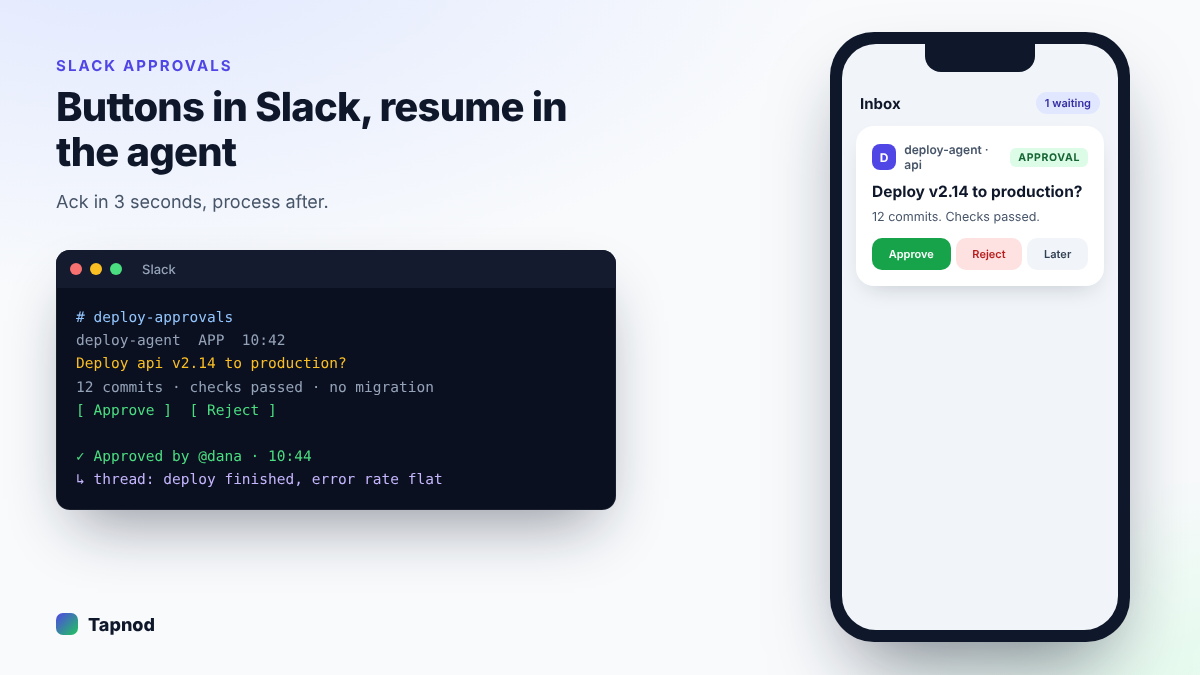
Picture a platform team with a deploy agent. Production deploys post to #deploy-approvals with the version, commit count and test status. The on-call engineer clicks Approve; the handler verifies the signature, checks she's on the on-call list, records it, updates the message, and calls the agent's resume webhook. The deploy result lands in the thread. Six months later, with eight agents posting, the channel is noisy, and they move agent requests to an inbox with phone notifications while keeping the channel for humans.
Key takeaways
- Post Block Kit messages with buttons carrying request IDs.
- Acknowledge clicks within three seconds; process asynchronously.
- Verify signatures, check approvers and make decisions idempotent.
- Slack suits small volume; dedicated inboxes suit many agents and mobile approvers.
FAQ
How do I build a Slack approval workflow for an AI agent?
Post a Block Kit message with Approve and Reject buttons, handle clicks at your interactivity endpoint, verify and record the decision, then resume the agent with the answer.
Why do Slack buttons need a fast response?
Slack expects interactivity requests to be acknowledged within three seconds. Acknowledge immediately and do the work in the background.
Can Slack approvals resume a LangGraph agent?
Yes. Store the thread ID with the request, and when the click arrives, invoke the graph with Command(resume=...) on that thread.
When should I move approvals out of Slack?
When volume, number of agents or mobile approvers make requests easy to miss in channels.
Where Tapnod fits
When Slack channels get noisy, Tapnod gives agent requests their own inbox, with approve, comment and reply from your phone. Start free.