 Tapnod
The short answer
Claude Code has two kinds of background work:
- Background commands inside a session. Press Ctrl+B to move a running Bash command, such as a dev server or a long test run, into the background, or ask Claude to run it in the background. Claude keeps working and reads the output later.
- Background sessions, managed in agent view with
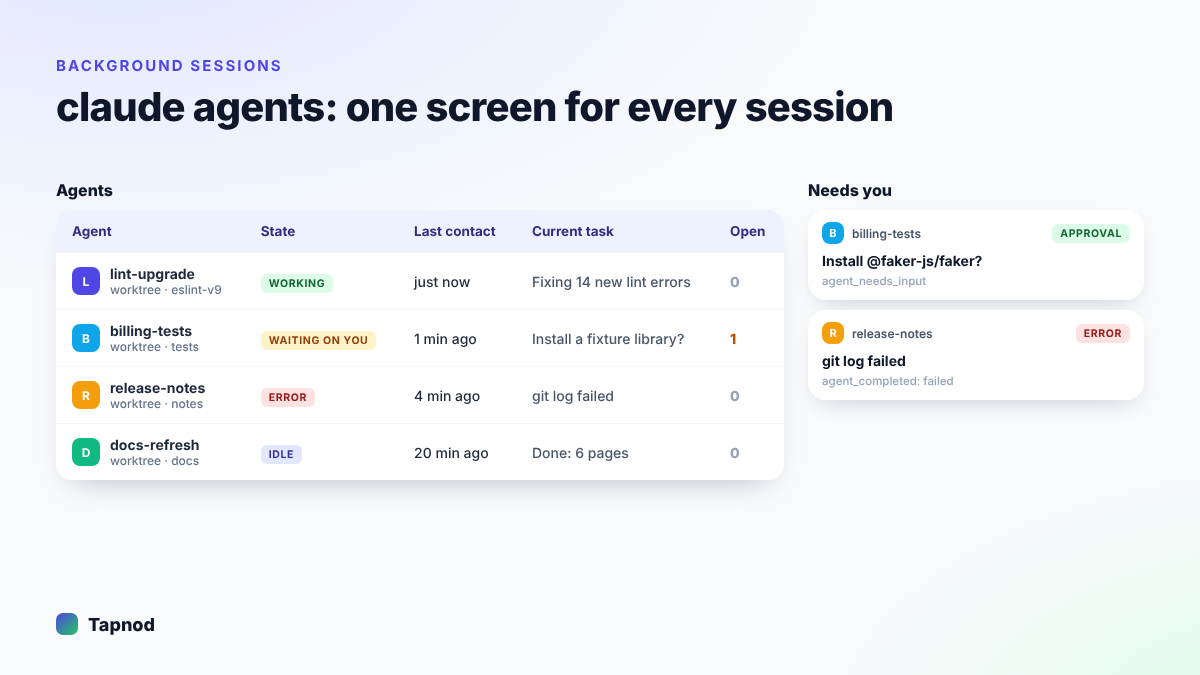
claude agents. Each one is a full Claude Code conversation that keeps running without a terminal attached, and agent view shows which ones are working, which need you and which are done.
The part people forget is the return path: how you find out that a background task finished or is stuck on a question.
"claude code background tasks" gets about 110 US searches a month at a keyword difficulty of 23, and "claude code background" adds 70 (Semrush, November 2026). It's a specific, practical query from people who've watched a terminal for twenty minutes waiting on a build.
Background commands with Ctrl+B
Inside a normal session, some commands run for a long time: npm run dev, a full test suite, a data import. Blocking the whole session on them wastes time.
Press Ctrl+B while a Bash command runs to move it to the background. If you use tmux, press it twice, since Ctrl+B is tmux's prefix key. You can also ask in plain words: "start the dev server in the background, then fix the header layout".
Background commands work like this:
- Output goes to a file Claude can read with its Read tool.
- Each task gets an ID for tracking and reading output.
- They're cleaned up when Claude Code exits.
If background commands are turned off with CLAUDE_CODE_DISABLE_BACKGROUND_TASKS, the command simply runs until its timeout.
Background sessions and agent view
Background sessions are a bigger idea: whole conversations that keep running on their own. You manage them from agent view:
# open agent view: one screen for all background sessions
claude agents

# start a session directly in the background from your shell
claude --bg "upgrade eslint to v9 and fix new lint errors"
Agent view takes over the terminal and lists every session grouped by state, with pinned sessions and the ones that need you at the top. You can dispatch new work from the input at the bottom, peek at a session, reply, or attach to the full conversation. In a regular session, pressing the left arrow on an empty prompt opens agent view, and /bg sends the current session to the background.
Agent view is a research preview on Pro, Max, Team, Enterprise and Claude API plans, so keys and layout may change.
Which one to use
| You want to | Use |
|---|---|
| Keep a dev server or test run going while Claude keeps working | Ctrl+B background command |
| Run three unrelated tasks at once | Background sessions in agent view |
| Run tasks while your laptop is closed | A cloud session, or a server you control |
| Keep a task going while you leave the house | A background session plus Remote Control or alerts |
| Run work on a schedule | Scheduled tasks or a cron job calling claude -p |
Hearing back from background work
A background task that finishes quietly is fine. One that stops at a permission prompt and sits there all afternoon is not. You have three ways to hear about it.
Agent view notifications. While agent view is open, Claude Code sends a notification through your terminal notification channel when a local background session starts needing input, finishes, or fails.
Hooks. The Notification hook has agent_needs_input and agent_completed matchers for exactly this. They fire when a background session waits on you or finishes, while agent view is open. Point them at a desktop alert, a sound or a webhook:
{
  "hooks": {
    "Notification": [
      {
        "matcher": "agent_needs_input",
        "hooks": [
          { "type": "command", "command": "~/.claude/hooks/push-to-phone.sh" }
        ]
      }
    ]
  }
}
Remote Control. If you started the session with Remote Control, the Claude app can push to your phone when actions are required. See Claude Code Remote Control.
Keep parallel sessions from colliding
Running several background sessions in one repository raises an obvious risk: two sessions editing the same file. Git worktrees solve it by giving each session its own checkout on its own branch. Remote Control's server mode can do this for you with --spawn worktree. More detail in running Claude Code agents in parallel.
A few habits help:
- One task per session, with a clear stopping point.
- Separate branches or worktrees for sessions that edit code.
- Allow rules for test commands, so background sessions don't stall on routine prompts.
- Ask rules for pushes and installs, so the risky moments still reach you.
Give background sessions good instructions
A background session works without you watching, so the prompt has to carry what you'd normally say along the way. Four lines cover most of it:
- The goal and the finish line: "Upgrade eslint to v9 and fix every new error. Stop when
npm run lintpasses." - The boundaries: "Only edit files under
src/. Don't change the lint config except to migrate its format." - What to do when unsure: "If a fix would change runtime behavior, ask me instead of guessing."
- What to leave behind: "Write a short summary of what changed and anything you skipped to
NOTES.md."
The third line is the important one. A background session that asks a clear question beats one that guesses, as long as the question reaches you. That's what the notification setup above is for.
A worked example
Picture a Friday afternoon. You open agent view and dispatch three tasks: upgrade a linting tool and fix the new errors, write missing tests for the billing module, and draft release notes from this week's merged PRs. Each runs in its own worktree.
Twenty minutes later, the billing session asks whether it may install a test fixture library. A Notification hook with the agent_needs_input matcher pings your phone, you approve from the push, and it continues. The lint session finishes and posts a summary. The release notes session hits an error reading the git log and fails, which also pings you. Two of three tasks are done before you've finished your coffee, and you know exactly which one needs a look.
FAQ
How do I run a command in the background in Claude Code?
Press Ctrl+B while a Bash command runs, or ask Claude to run it in the background. In tmux, press Ctrl+B twice.
What is agent view in Claude Code?
A research-preview screen, opened with claude agents, that lists all your background sessions by state and lets you dispatch, peek, reply and attach.
How do I know when a background task needs me?
Use the Notification hook with the agent_needs_input and agent_completed matchers, keep agent view open for its notifications, or use Remote Control push on your phone.
Do background tasks survive closing the terminal?
Background commands are cleaned up when Claude Code exits. Background sessions keep running without a terminal attached, but your machine has to stay on.
Where Tapnod fits
Tapnod collects "needs input", "done" and "failed" from Claude Code's background sessions and your other agents in one phone inbox, so nothing waits on you unnoticed. Try it free.