 Tapnod
The short answer
Claude Code reads hooks from the same settings files whether you use the VS Code extension or run claude in VS Code's integrated terminal. So the way to get notifications in VS Code is the same as anywhere: a Notification hook with a matcher such as permission_prompt or idle_prompt, running a desktop, sound or webhook command.
Two things differ in VS Code. The timing of permission_prompt is different in hosts like the VS Code extension, and the terminal bell depends on VS Code's own settings.
"claude code vscode notification" and "vscode claude code notification" each get about 40 US searches a month at low difficulty (Semrush, November 2026). The pattern behind them is familiar: you switch to another editor tab or a browser, and Claude sits waiting in the side panel.
Extension or terminal: same hooks
You can use Claude Code in VS Code two ways: the Claude Code extension panel, or the claude CLI in the integrated terminal. Both read hooks from:
~/.claude/settings.jsonfor all your projects.claude/settings.jsonfor the project, checked in.claude/settings.local.jsonfor local-only settings
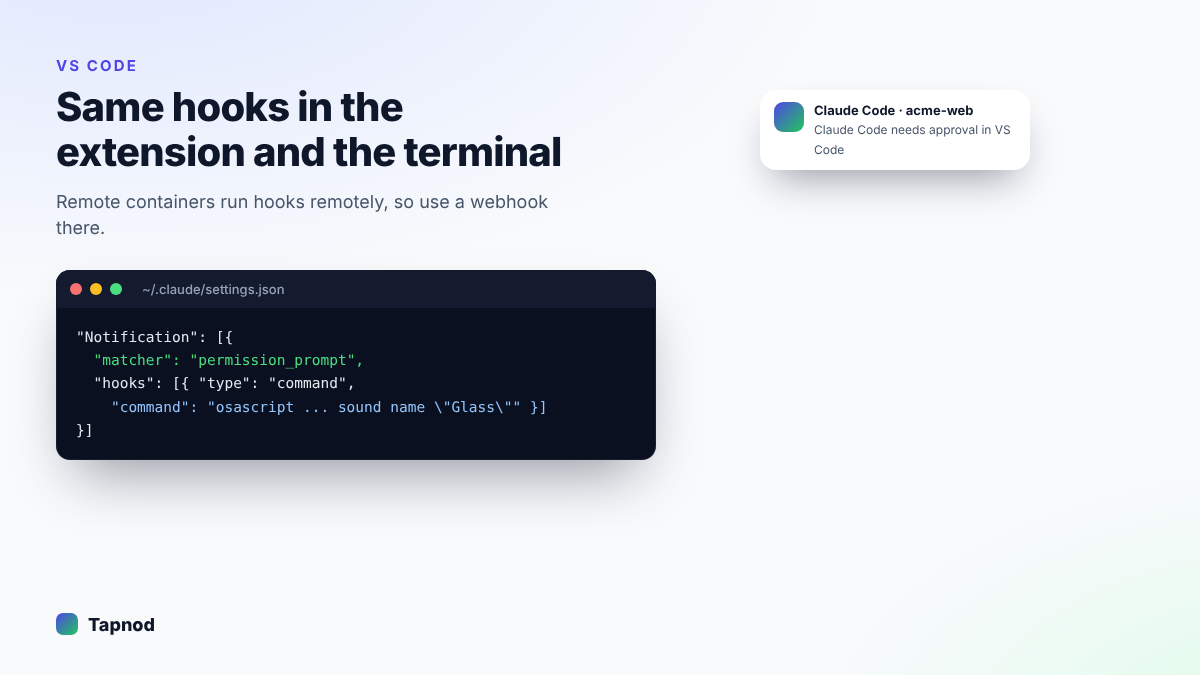
Add this to your user settings to get a macOS alert when Claude needs approval:
{
  "hooks": {
    "Notification": [
      {
        "matcher": "permission_prompt",
        "hooks": [
          {
            "type": "command",
            "command": "osascript -e 'display notification \"Claude Code needs approval in VS Code\" with title \"Claude Code\" sound name \"Glass\"'"
          }
        ]
      }
    ]
  }
}
On Linux, use notify-send; on Windows, a PowerShell command. Platform details are in Claude Code sound and desktop notifications.
Prompt timing differs by host
In a terminal, permission_prompt fires after a prompt has waited about six seconds. Anthropic's docs note that Claude Code times this notification differently in Claude Desktop, the VS Code extension and other hosts that answer permission requests through the Agent SDK. If your alert seems early or late in the extension compared with the terminal, that's expected. Check the hooks reference for the current timing of each host.
The terminal bell in VS Code
If you run claude in the integrated terminal, a hook that runs printf '\a' rings the terminal bell. What happens next is up to VS Code: open Settings and search for "terminal bell" to choose between a sound, a visual flash or nothing. It's the lightest-weight option and needs no OS permissions, but you'll only notice it if VS Code is in front of you.
Remote development: watch where the hook runs
VS Code's Remote SSH, Dev Containers and WSL setups run the extension host and terminal on the remote side. That means your hooks also run there. osascript won't exist in a Linux container, and notify-send on a server has nowhere to show a banner.
For remote setups, send the event to something that reaches you:
| Setup | Hook runs on | Use |
|---|---|---|
| Local folder | Your machine | osascript, notify-send, PowerShell |
| WSL | Linux in WSL | powershell.exe via interop, or a webhook |
| Dev Container | The container | A webhook or push service |
| Remote SSH | The server | A webhook or push service |
A webhook-based hook works the same everywhere. Point it at a push service, your own endpoint, or an agent inbox.
Phone alerts while VS Code is open
Desktop alerts are fine while you're at the computer. For the moments you aren't, send the same events to your phone. The Claude Code notifications guide has a small script that posts the hook's message to a push service, and Remote Control push works with VS Code too: type /remote-control in the extension's prompt box to connect the session.
A setup we like for VS Code
permission_prompt→ desktop notification with a distinct sound, plus a phone push.idle_prompt→ a soft sound only.elicitation_dialog→ same aspermission_prompt, since an MCP form also blocks progress.- Allow rules for your test and lint commands, so you're not notified about routine prompts.
- Project hooks in
.claude/settings.jsonso teammates get the same behavior.
Share the setup with your team
Because the extension reads project settings, you can check notification hooks into .claude/settings.json so everyone on the team gets the same behavior. Two things make shared hooks work across different machines:
- Reference scripts with
$CLAUDE_PROJECT_DIR, for example"\"$CLAUDE_PROJECT_DIR\"/.claude/hooks/notify.sh", so the path resolves from any subfolder. - Detect the platform inside the script rather than hard-coding
osascript. A teammate on Windows or in a Dev Container should get a sensible fallback, such as the terminal bell or a webhook, instead of an error.
Keep personal preferences, such as which sound to play or a private push topic, in ~/.claude/settings.json or .claude/settings.local.json. The shared file should hold behavior the team agrees on, not one person's phone number.
Notifications and focus
VS Code users often keep several editor windows and a browser open at once, which is exactly when a waiting prompt goes unseen. The cheapest improvement is to reduce how many prompts appear at all. Allow rules for your test and lint commands, and acceptEdits mode on feature branches, cut most routine prompts. What's left deserves the alert.
Troubleshooting in VS Code
- Hook works in the terminal but not the extension. Make sure it's in a settings file the extension reads, not only in a shell profile, and use absolute paths.
- No banner on macOS. Script Editor needs notification permission for
osascriptalerts. - Nothing in a Dev Container. The hook ran inside the container. Use a webhook instead of a local OS command.
- Too many alerts. Narrow the matcher, or add allow rules so fewer prompts appear.
A worked example
Picture a developer using the Claude Code extension in one VS Code window and reviewing a PR in another. Claude asks to run a migration. Six-ish seconds later a "Glass" chime plays and a banner says "Claude Code needs approval in VS Code". They switch windows, read the command, approve. Later the task finishes; idle_prompt plays a soft sound a minute after, and they wrap up the PR review before going back. When they work from a Dev Container on another day, the same project hook posts to their phone instead, because there's no desktop inside the container.
Key takeaways
- The VS Code extension and the integrated terminal read the same hooks.
permission_prompttiming differs between the extension and a terminal.- In Dev Containers and Remote SSH, hooks run remotely, so send events to a webhook.
- Share hooks through project settings and keep personal targets local.
FAQ
Do Claude Code hooks work in the VS Code extension?
Yes. The extension reads hooks from the same settings files as the CLI, so a Notification hook works in both.
Why is my permission notification timing different in VS Code?
Claude Code times permission_prompt differently in hosts like the VS Code extension than in a terminal. That's documented behavior.
How do I get Claude Code notifications in a Dev Container?
The hook runs inside the container, so use a webhook or push service rather than a local desktop command.
Can I use Remote Control from VS Code?
Yes. Type /remote-control or /rc in the extension's prompt box to connect the session to claude.ai or the Claude app.
Where Tapnod fits
Wherever VS Code runs your session, Tapnod can receive its approvals and results and put them on your phone next to your other agents. Connect an agent free.