 Tapnod
The short answer
Zapier's Human in the Loop is a built-in app that pauses a Zap until a person responds. It has two actions:
- Request Approval pauses the run so a reviewer can approve, decline or edit the data before the Zap continues.
- Collect Data pauses the run to ask a reviewer for more information, which later steps can use.
Requests can go out by email, Slack, or by triggering another Zap through the New Approval Requested trigger, which lets you send them to almost any app Zapier connects to. Reviewers open a link, sign in to Zapier and answer. Zapier's help center lists it as a premium app that needs a paid account.
"zapier human in the loop" gets about 30 US searches a month, with "human in the loop zapier" adding 20 (Semrush, November 2026). Most searchers already use Zapier and want a pause before an AI step does something visible.
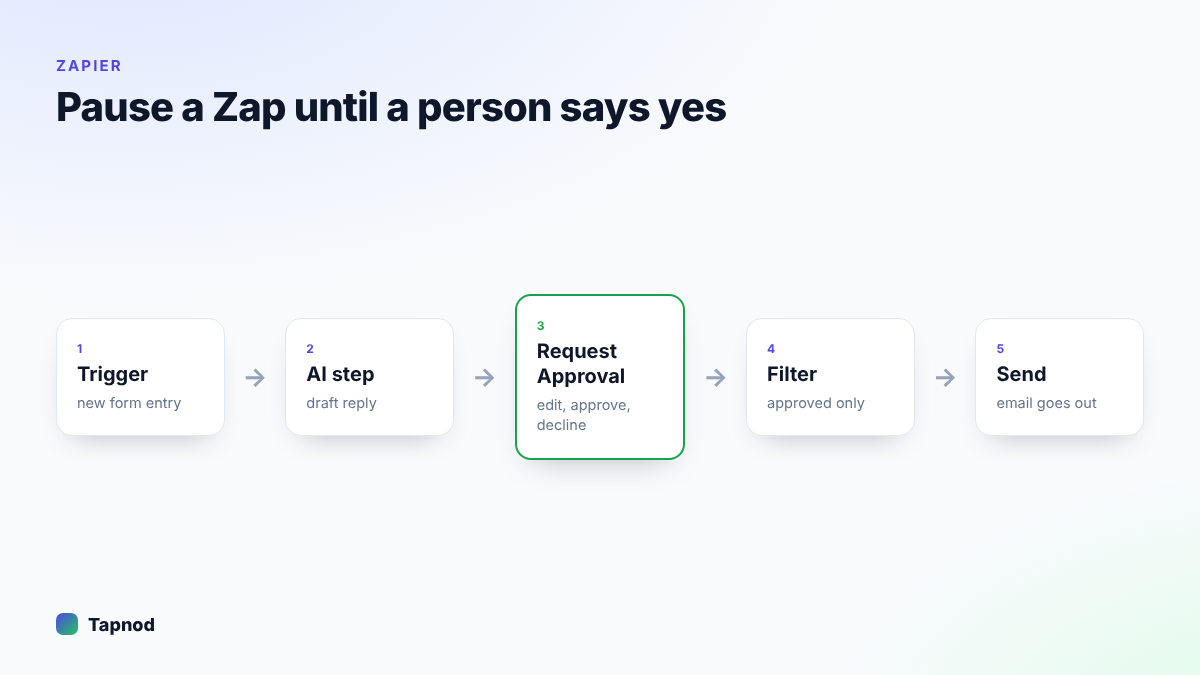
Request Approval, step by step
- Trigger: a new form entry, a new email, a new row.
- AI step: draft a reply, summarize a document, score a lead.
- Human in the Loop, Request Approval: write the approval message, map the AI output into fields, decide whether reviewers can edit, set approve and decline labels, and choose how to notify.
- Filter or Paths: continue only when approved.
- Action: send the email, update the CRM, post the message.
Labels for approve and decline can be up to 75 characters, so make them specific: "Send reply" and "Discard draft" are clearer than "Yes" and "No".
Collect Data, step by step
Use Collect Data when a reviewer needs to add something beyond a yes:
- Write a data collection message explaining what you need.
- Add input fields, such as a discount code, a priority or a corrected address.
- Choose who reviews and how they're notified.
- Map the collected values into later steps.
Reviewers can also skip a request, which sends no response, so plan what the Zap does in that case.
Notification options
| Method | Good for | Watch out for |
|---|---|---|
| Occasional approvals | Slow responses, buried in inboxes | |
| Slack | Teams that live in Slack | Busy channels bury requests |
| Trigger a Zap | Any other app: Discord, SMS, a task tool, a webhook | Needs a second Zap with the New Approval Requested trigger |
The third option is the flexible one: a second Zap catches each approval request and sends a custom notification wherever your reviewers actually look.
Timeouts and reminders
Human in the Loop steps include timeout and reminder settings. Decide upfront what happens when nobody answers: continue with a default, stop the Zap, or remind someone. A Zap that waits forever on a lead follow-up is worse than one that sends a safe default after a few hours.
Using it with AI agents
Zapier positions Human in the Loop as part of its AI orchestration, and its apps can be exposed as tools to MCP clients. That opens a pattern where an AI agent triggers a Zap that requests approval, waits, and continues. For agents that only need a yes or no before a business action, that can be enough. For coding agents or long-running agents with many questions a day, a dedicated agent inbox is usually a better fit.
Example workflows
| Workflow | Human step | Why |
|---|---|---|
| AI-drafted customer replies | Request Approval with editing on | Tone and facts checked before sending |
| Large orders flagged by a filter | Request Approval | A person investigates before fulfilment |
| Lead enrichment with gaps | Collect Data | Sales fills in what the AI couldn't find |
| Blog post descriptions from RSS | Request Approval with editing | Small edits before publishing |
| Expense reports over a limit | Request Approval | Finance signs off |
Filtering on the result
After a Request Approval step, add a filter or Paths step that checks the reviewer's decision. Approved runs continue to the action; declined runs can log the decision, notify the requester or stop. If editing is allowed, map the edited fields from the Human in the Loop step into later actions, not the original AI output, or the reviewer's changes will be lost. This is the most common mistake in new approval Zaps: the reviewer fixes a sentence, and the original draft is sent anyway.
Keeping volume manageable
Approval steps cost reviewer attention, so use them where they matter:
- Filter before asking. Request approval only for orders above a threshold, replies to key accounts or posts on public channels.
- Batch when you can. A daily digest of low-risk drafts may beat twenty separate requests.
- Track approval rates. If a step is approved unchanged nearly every time, consider removing it or narrowing what triggers it.
Testing an approval Zap
Before turning a Zap on, run it with test data through both paths. Approve once and confirm the action used the reviewer's edited fields. Decline once and confirm nothing was sent. Then let one request time out to see what the Zap does on silence. Three test runs catch most configuration mistakes before a customer sees them.
Who can review
Reviewers need access to the Zap, so you share it with them, and they sign in to Zapier to answer. That's fine for internal teams on your Zapier account. It's a hurdle for reviewers who don't use Zapier, such as clients or executives.
Zapier vs other options
| Tool | Best for | Trade-off |
|---|---|---|
| Zapier Human in the Loop | Zapier-based workflows | Reviewers need Zapier access; paid feature |
| n8n human review | Self-hosted workflows, AI tool calls | You run n8n |
| Agent framework interrupts | Code-first agents | You build the review UI |
| A cross-agent inbox | Many agents and tools, mobile reviewers | Another tool to connect |
See n8n human in the loop and human in the loop automation for comparisons.
Writing approval messages that get read
- Put the decision first: "Send this reply to a customer asking about a refund?"
- Show the AI output in mapped fields, not as a blob in the message.
- Name the consequence: "Approving sends the email immediately."
- Keep it short: reviewers decide from a phone notification more often than you'd think.
A worked example
Picture a small agency that drafts replies to inbound leads with AI. The Zap triggers on a new form entry, drafts a reply, then pauses at Request Approval with editing allowed. A second Zap catches the approval request and texts the account lead. She opens the link, softens one line, and approves. A filter checks for approval, and the reply goes out within ten minutes of the form, written by AI and checked by a person.
Key takeaways
- Human in the Loop pauses Zaps with Request Approval or Collect Data.
- Notify by email, Slack, or any app through a second Zap.
- Set timeouts and reminders so runs don't hang.
- Reviewers need Zapier access, and it's a premium feature.
FAQ
What is Human in the Loop in Zapier?
A built-in Zapier app that pauses a Zap until a reviewer approves, declines, edits or adds data.
Is Zapier Human in the Loop free?
Zapier's help center lists it as a premium app that needs a paid Zapier account.
Can reviewers edit the data before approving?
Yes, if you allow editing in the Request Approval step. Otherwise the content is read-only.
Can I get Zapier approval requests on my phone?
Through email or Slack notifications, or by triggering a second Zap that sends a push, SMS or message to any connected app.
Where Tapnod fits
If your approvals come from AI agents as well as Zaps, Tapnod puts them in one inbox on your phone, connected by webhook. Try it free.