 Tapnod
The short answer
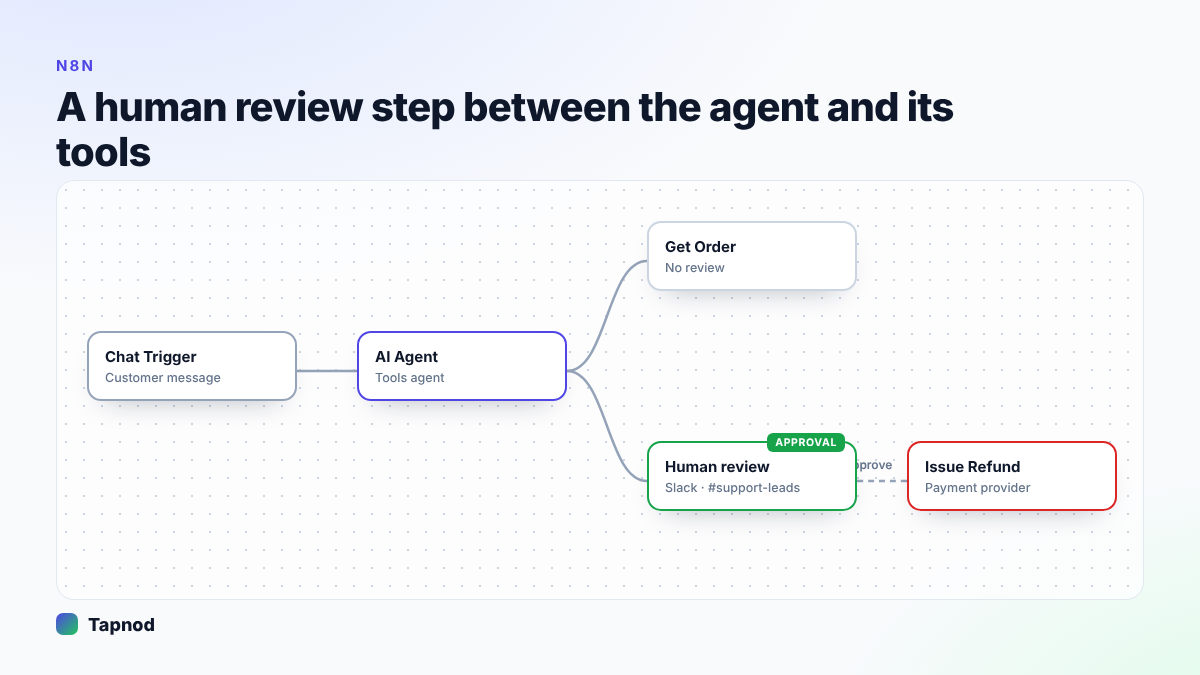
n8n has built-in human in the loop for AI Agent tool calls. You add a human review step between an AI Agent node and the tools that need approval. When the agent tries to call one of those tools, the workflow pauses and sends an approval request through a channel you pick, such as Slack, Telegram or n8n Chat. A reviewer approves and the tool runs with the agent's input, or denies and the agent is told it was rejected.
No custom UI, no extra database. For many n8n users that's the fastest way to put a human gate in front of risky actions.
"n8n human in the loop" gets about 110 US searches a month at a keyword difficulty of 23 (Semrush, November 2026). It's a small but very practical query: people searching it are usually halfway through building an agent and need the gate today.
When to add human review
n8n's own guidance lines up with what we see in practice. Add a review step when a tool:
- Can't be undone: deleting records, sending external messages, making purchases.
- Touches people outside the team: customer emails, social posts, CRM updates.
- Costs money per call: paid APIs, ad spend, bulk enrichment.
- Is new: you haven't yet seen how the agent uses it.
Read-only tools, like searching docs or fetching a record, usually don't need it.
Set it up in four steps
- Open the tools panel. Click the Tools connector on your AI Agent node.
- Add a human review step. In the Human review section, pick an approval channel and set its credentials.
- Connect the risky tools to the review step, not directly to the agent. Configure each tool as usual.
- Tell the agent about it in the system prompt, so it handles denials sensibly (more on that below).
Review is per tool. You can put every tool behind review, or only the two that scare you.
Approval channels
The review channel can be different from the channel users talk to the agent in. A customer can chat with your agent in n8n Chat while approvals go to your team's Slack.
| Channel | Good for |
|---|---|
| n8n Chat | Testing, and when the person chatting is the approver |
| Slack, Microsoft Teams, Google Chat | Team approvals during work hours |
| Telegram, WhatsApp Business Cloud, Discord | Fast phone approvals |
| Gmail, Microsoft Outlook | Slower, formal sign-off |
Pick the one your approver actually looks at within minutes. An approval request in an inbox nobody checks is the same as no approval at all, except the workflow sits paused.
Show the reviewer what the agent wants
The review message can use the $tool variable, which carries the tool's name as shown on the canvas and the parameters the agent is about to use, including values set with $fromAI(). A clear message looks like this:
Agent wants to run: {{ $tool.name }}

Proposed input:
{{ JSON.stringify($tool.parameters, null, 2) }}

Approve to run it with exactly these values. Deny to cancel and tell the agent.
Showing the exact parameters matters. "Agent wants to send an email" is easy to approve blindly. "Agent wants to send an email to 412 contacts with subject 'Your invoice is overdue'" makes people stop and read.
Prompt the agent for denials
If the agent doesn't know a tool is gated, a denial can confuse it into retrying or making something up. Add a short block to the system prompt:
- Which tools require human approval.
- What a denial means: the action did not happen.
- What to do next: tell the user, offer an alternative, or ask a clarifying question. Don't retry the same call.
This small addition does more for reliability than any other tweak.
Sub-agents and chaining
If you use an AI Agent as a tool for another AI Agent, human review steps inside the sub-agent still work. That lets you build a planner agent that runs freely and a worker agent whose dangerous tools are gated.
Example: a refund agent with a human gate
Here's a setup we like for e-commerce support. A Chat Trigger feeds an AI Agent that can read orders, look up the refund policy, and issue refunds through your payment provider. Only the refund tool sits behind a human review step, routed to a Slack channel the support lead watches.
When a customer asks for a refund, the agent checks the order and policy on its own, then calls the refund tool. The workflow pauses and Slack shows the tool name and the exact parameters: order ID, amount and reason. The lead approves, and the refund runs with those values. If they deny, the agent tells the customer a person will follow up and suggests store credit if the policy allows it, because the system prompt told it to.
Two details make this work. The review message shows the amount in plain sight, so nobody approves $480 when they expected $48. And reading tools stay ungated, so the agent does all the research before it asks, which means the reviewer sees a finished proposal rather than a half-formed one.
Two n8n approval patterns compared
The tool-level review step is for AI Agent tool calls. For classic workflows without an agent, many n8n users pause with a "send and wait for response" style step in a messaging node instead.
| Human review for tools | Send and wait step | |
|---|---|---|
| Where it sits | Between AI Agent and a tool | Anywhere in a workflow |
| Triggered by | The agent choosing that tool | The workflow reaching that node |
| Best for | Gating agent actions | Fixed checkpoints, like "approve this invoice" |
| Agent learns about denials | Yes | Only if you wire it back |
Limits to plan around
Reviewer actions are approve or deny. There's no built-in "edit the parameters, then run". If a reviewer wants a different subject line, they deny and say why, and the agent tries again.
Approvals live where the channel lives. A Slack approval is buried among other messages. If you run several workflows and agents outside n8n too, approvals end up spread across tools. We wrote about why that gets messy in Slack approval workflows for AI agents.
Paused executions need a policy. Decide what happens to a request nobody answers. Old paused runs pile up and can act on stale data when someone finally clicks.
Sending n8n approvals to an agent inbox
If you want n8n approvals next to approvals from Claude Code, LangGraph or your own scripts, route them to one place. A common setup is an HTTP Request node that posts the decision to an inbox with a signed webhook back to n8n, so the workflow resumes on the answer. You get one queue on your phone instead of one per tool.
For the general pattern behind all of this, see how to add a human in the loop to any AI agent, and for the framework-level view, human-in-the-loop AI agents.
FAQ
Does n8n support human in the loop for AI agents?
Yes. You can add a human review step to an AI Agent's tools so specific tool calls pause for approval through a channel like Slack, Telegram, Teams, Gmail or n8n Chat.
What can the reviewer do in n8n?
Approve, which runs the tool with the agent's input, or deny, which cancels the call and tells the agent it was rejected.
How do I show the tool's parameters in the approval message?
Use {{ $tool.name }} for the tool and {{ JSON.stringify($tool.parameters, null, 2) }} for the proposed input in the review message.
Does human review work with sub-agents?
Yes. When an AI Agent is used as a tool by another agent, review steps inside the sub-agent work as expected.
Where Tapnod fits
If your approvals come from n8n and other agents, Tapnod puts them in one inbox with approve, reply, comment and later, on the web and on Android. Start free.