 Tapnod
The short answer
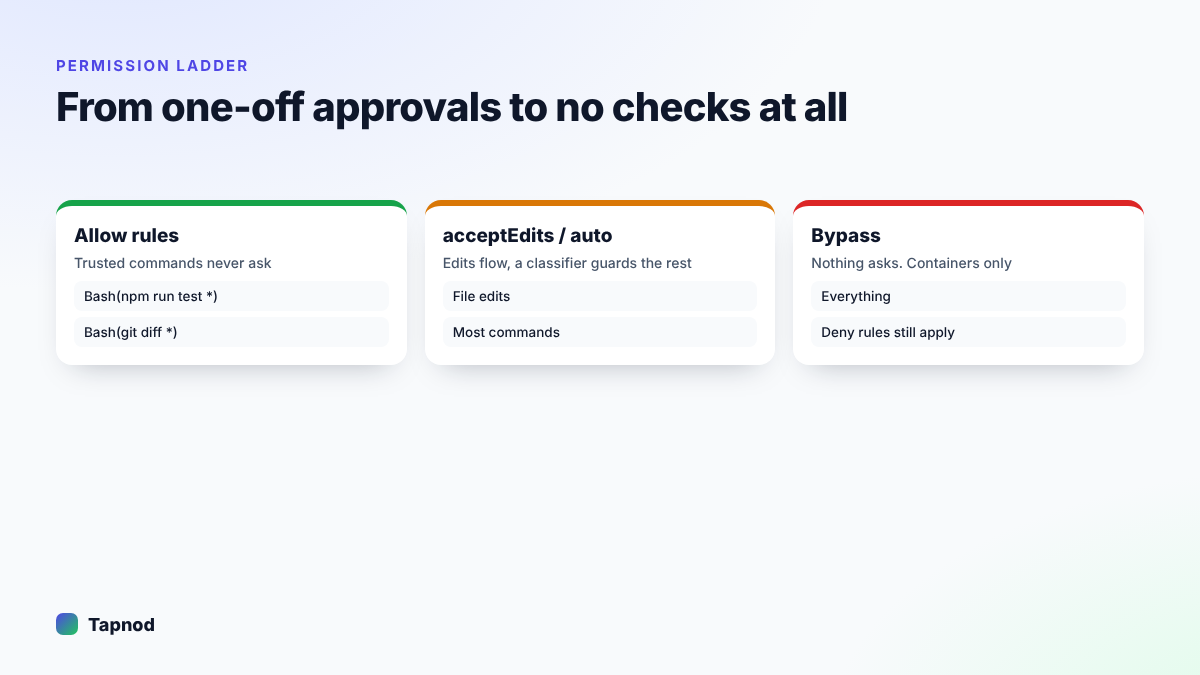
You can make Claude Code stop asking for permission in six ways, from safest to riskiest:
- Choose "Yes, and don't ask again" on prompts you trust.
- Add allow rules for specific commands in
/permissionsor a settings file. - Switch to
acceptEditsmode so file edits stop prompting. - Switch to
automode, where a classifier reviews actions instead of you. - Use
dontAskmode for scripts, which denies anything not pre-approved. - Use bypass mode, which skips checks entirely.
Most people get what they want from options 2 and 3, plus a way to answer the rare remaining prompt from their phone.
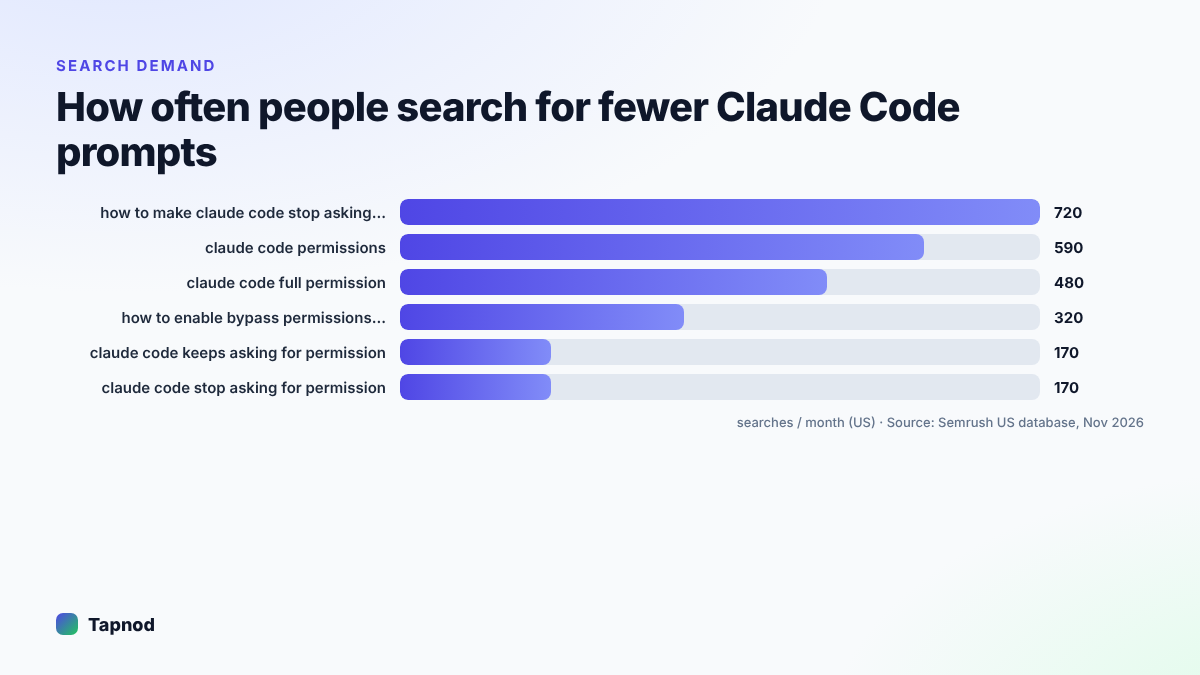
This is one of the most common frustrations with Claude Code. "how to make claude code stop asking for permission" gets about 720 US searches a month, and "claude code keeps asking for permission" and "claude code stop asking for permission" add 170 each (Semrush, November 2026).
Why Claude Code asks so often
By default Claude Code reads files freely inside your working directory and a built-in set of read-only shell commands. Everything else asks: other shell commands, file edits, web fetches and web searches.
The prompts aren't random. Each "Yes, and don't ask again" choice is remembered differently:
| Action | "Don't ask again" lasts |
|---|---|
| Bash command | Permanently for that repository and command |
| File edit | Until the session ends |
| Web fetch | Permanently for that repository and domain |
| Web search | Permanently for that repository |
Permanent approvals are saved to .claude/settings.local.json at the root of the git repository. That explains a common complaint: file edits prompt again in every new session, because their approval never persists. The fix for that one is a mode, not a rule.
Option 1: approve once, the right way
When a prompt offers "Yes, and don't ask again", it saves a rule that covers exactly what the option named. Use it for commands you run all the time, like your test runner.
Some prompts only offer a one-time approval. Claude Code does that when it can't show you everything a broader rule would allow, for example commands wrapped in watch or a find with -delete. Approve those once, or write a precise rule yourself.
Option 2: allow rules
Allow rules are the cleanest fix for repeated command prompts. Open /permissions, or edit .claude/settings.json for the team or ~/.claude/settings.json for yourself:
{
  "permissions": {
    "allow": [
      "Bash(npm run test *)",
      "Bash(npm run lint *)",
      "Bash(git status)",
      "Bash(git diff *)",
      "Bash(git log *)"
    ],
    "deny": [
      "Bash(git push *)",
      "Read(./.env*)"
    ]
  }
}
Three rules of thumb make allow rules safe:
- Put the
*after the subcommand.Bash(git log *)allows onlygit log.Bash(git *)allows every git command, including push. - Remember the order. Rules are checked deny first, then ask, then allow. A broad deny always beats a narrow allow.
- Shell operators are understood.
Bash(npm test *)doesn't approvenpm test && rm -rf build, because each subcommand must match on its own.
Option 3: acceptEdits mode
If most of your prompts are file edits, switch modes rather than writing rules. Press Shift+Tab to cycle modes, or start with:
claude --permission-mode acceptEdits
In acceptEdits, Claude edits files and runs common filesystem commands like mkdir, touch, mv and cp inside your working directories without asking. Other shell commands still ask unless an allow rule covers them. It's a good fit when you're working on a branch and plan to review the diff anyway.
Option 4: auto mode
Auto mode hands the decisions to a separate classifier model. It reviews actions before they run and blocks anything that goes beyond your request, targets infrastructure it doesn't recognize, or looks driven by hostile content. Force pushes, production deploys, curl | bash and mass cloud deletions are blocked by default.
After three blocks in a row, or 20 in total, auto mode pauses and goes back to prompting. It needs a supported model and plan, and organizations can turn it off. It reduces prompts a lot, but Anthropic is clear that it doesn't guarantee safety.
Option 5: dontAsk for scripts
dontAsk is the opposite of what people expect from the name. It doesn't approve everything; it denies every call that would otherwise prompt. Only pre-approved tools and in-directory reads run. That makes it ideal for CI, where a prompt would hang the job forever.
Option 6: bypass
Bypass mode, started with --dangerously-skip-permissions, removes the checks. Keep it for disposable containers. Our guide to enabling bypass permissions covers how and when.
Which option to pick
| Your situation | Best option |
|---|---|
| Same few commands keep prompting | Allow rules |
| File edits prompt every session | acceptEdits |
| Long tasks, you want few interruptions | auto |
| CI pipeline or cron job | dontAsk with allow rules |
| Throwaway container, unattended | Bypass |
| You're leaving and don't want it stuck | Answer prompts remotely |
The prompts you should keep
Removing every prompt removes the moments where you'd catch a mistake. These are worth keeping as ask rules even if you allow everything else:
git pushto protected branches- Database migrations against anything but local
- Package installs, which pull new code into your project
- Deploy commands
- Anything that sends email or messages
The trick is to make those few prompts painless. If they reach your phone with the exact command shown, approving takes seconds and you never have to sit at the terminal waiting. Claude Code notifications shows how to route permission_prompt events to your phone, and Claude Code Remote Control lets you answer from the Claude app.
A worked example
Picture a solo developer approving dozens of prompts in an afternoon. Sorting them usually shows three groups: test and lint runs, file edits, and the occasional npm install or git push.
The fix follows the groups. Allow rules cover the test and lint scripts and read-only git commands. acceptEdits mode covers edits while working on a branch. ask rules keep git push and npm install in front of a human, and a Notification hook sends permission_prompt events to the phone. The prompts that remain are few, and each one is something worth seeing.
Key takeaways
- Allow rules fix repeated command prompts.
acceptEditsstops file edit prompts, which never persist between sessions.automode swaps your approval for a classifier that blocks risky actions.- Keep
askrules for pushes, installs and deploys, and answer them from your phone.
FAQ
How do I make Claude Code stop asking for permission?
Add allow rules for the commands you trust, switch to acceptEdits mode for file edits, or use auto mode for long tasks. Keep bypass mode for isolated containers.
Why does Claude Code keep asking to edit files?
File edit approvals only last until the session ends. Use acceptEdits mode, or start sessions with --permission-mode acceptEdits, so edits stop prompting.
Where are "don't ask again" choices saved?
Permanent approvals go to .claude/settings.local.json at the root of your git repository. You can review and remove them with /permissions.
Is auto mode safe?
Safer than bypass, since a classifier blocks risky actions like force pushes and production deploys. It still isn't a guarantee, so keep deny rules for credentials and destructive commands.
Where Tapnod fits
Keep the prompts that matter and answer them from anywhere: Tapnod sends Claude Code's approvals to your phone as one-tap cards, next to your other agents. Start free.