 Tapnod
The short answer
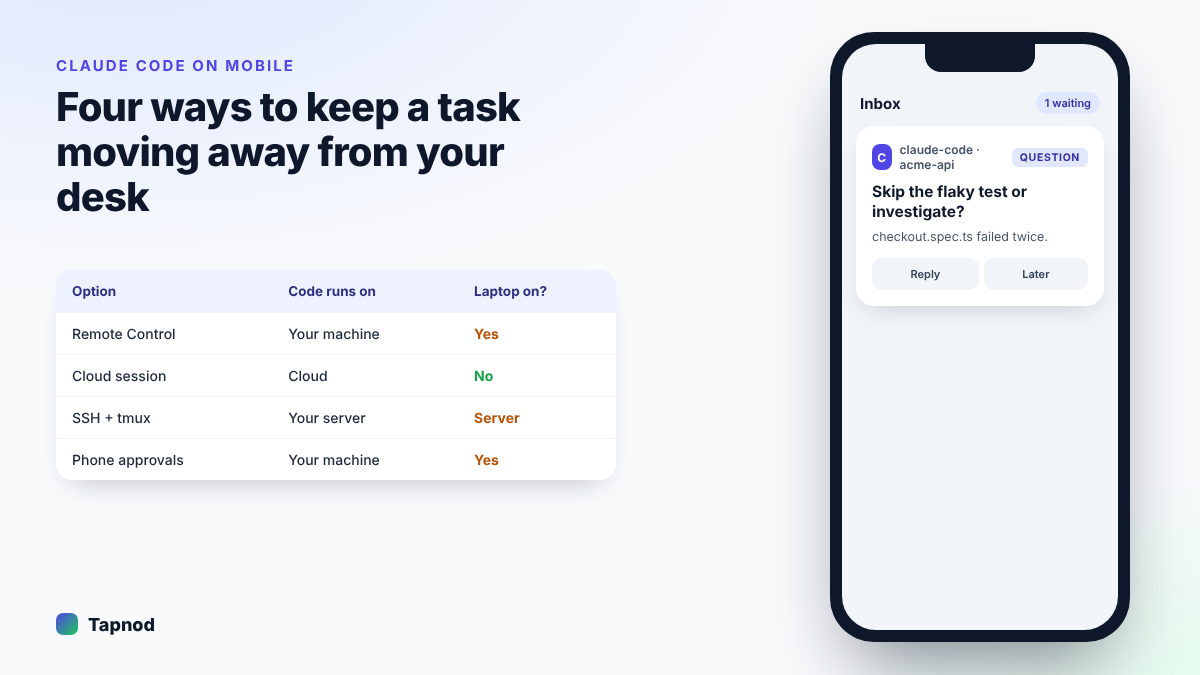
There are four practical ways to use Claude Code on mobile:
- Remote Control: drive a session running on your own computer from the Claude app or claude.ai/code.
- Cloud sessions: start work at claude.ai/code that runs on Anthropic-managed infrastructure, no laptop needed.
- SSH plus tmux: open a terminal app on your phone and attach to Claude Code on a server.
- Phone approvals: let Claude Code keep running at the desk and only answer its questions and permission prompts from your phone.
Which one fits depends on where your code lives and how much typing you want to do on a small screen.
People ask this a lot. "claude code on mobile" gets about 170 US searches a month at a keyword difficulty of 23, and the broader "claude code mobile" gets 880 (Semrush, November 2026). Most of them want the same thing: keep a task moving when they step away.
Option 1: Remote Control
Remote Control keeps Claude running on your machine and turns your phone into a window onto that session. Your local files, tools and MCP servers stay available, and the conversation syncs between the terminal, browser and phone.
Setup:
- Install the Claude app on iPhone or Android and sign in with the same account you use for Claude Code. If you don't have the app, run
/mobilein Claude Code for a QR code to the right store. - In your project, start a session with Remote Control on:
claude --remote-control "billing refactor"
- Scan the QR code or open the session in the app.
- Run
/configand turn on Push when actions required so your phone tells you when a prompt is waiting.
Remote Control needs a Pro, Max, Team or Enterprise plan and a claude.ai login, not an API key. Your computer has to stay awake and online. Full details and limits are in Claude Code Remote Control.
Option 2: Cloud sessions
Cloud sessions run on cloud infrastructure, Anthropic-managed by default, and use the same claude.ai/code interface. You pick a repository, describe the task, and Claude works without your laptop.
This is the best choice when you're starting something new from your phone, like "fix the typo in the pricing page and open a PR". It's a weaker fit when the task needs a local database, VPN access or MCP servers that only exist on your machine.
Option 3: SSH and tmux
The classic route still works well, especially for servers. Run Claude Code inside tmux on a VPS or home machine, then connect from a terminal app on your phone and attach to the session.
# on the server
tmux new -s agent
claude

# later, from your phone's terminal app
ssh you@your-server
tmux attach -t agent
It works with any login method, including API keys, and you see the real terminal. The downside is typing on a phone keyboard and reading wide diffs on a narrow screen. It's great for answering a prompt or checking progress, tiring for real editing.
Option 4: Answer prompts from your phone
Often you don't want to "use" Claude Code on mobile at all. You want it to keep working at the desk and only reach you when it's blocked. That's a smaller, better-defined job.
You can do it with Remote Control push notifications, or with a Notification hook that forwards permission prompts to your phone. Our Claude Code notifications guide has working configs for both. If you run more than Claude Code, an agent inbox that collects prompts from every agent saves you checking several apps.
Which option fits you
| Remote Control | Cloud session | SSH + tmux | Phone approvals | |
|---|---|---|---|---|
| Code runs on | Your machine | Cloud | Your server | Your machine or server |
| Laptop must stay on | Yes | No | Server must | Yes |
| Works with API key login | No | No | Yes | Yes, via hooks |
| Local MCP servers and tools | Yes | No | Yes | Yes |
| Typing on the phone | Some | Some | A lot | Almost none |
| Best for | Continuing a local task | Starting fresh work | Servers and VPS | Long tasks you mostly trust |
iPhone tips
- Check notification settings. Focus modes and notification summaries can delay or hide pushes. Look under Settings, Notifications, Claude.
- Use a hardware keyboard if you type a lot. For anything beyond short replies, an iPad with a keyboard is far more comfortable.
- Keep prompts short. On mobile, a clear one-line instruction like "run the tests again and stop if anything fails" works better than a long paragraph.
Android tips
- Allow notifications for the Claude app and exclude it from battery optimization, or pushes may arrive late.
- Progressive web apps work well. Many agent tools, including agent inboxes, install as PWAs from Chrome with their own icon and notifications.
- Terminal apps are excellent on Android for the SSH route, with good keyboard support.
More Android-specific detail lives in Claude Code on Android.
What to do from mobile, and what to save for the desk
Phones are great for decisions and short instructions. They're poor for reviewing a 600-line diff.
| Good on mobile | Better at the desk |
|---|---|
| Approving a command you recognize | Reviewing large diffs |
| Answering "which branch?" | Debugging a failing build in detail |
| Telling Claude to continue or stop | Changing project settings or hooks |
| Starting a small, well-scoped task | Running /plugin or /resume, which are local-only with Remote Control |
A good habit is to ask Claude to summarize before you approve anything big from your phone: "list the files you changed and the commands you plan to run next".
A realistic afternoon
Here's how these options combine in practice. You start a refactor at your desk at 14:00 with Remote Control on, in acceptEdits mode, with your test command allowed. At 14:30 you leave for a meeting.
At 14:52 Claude wants to add a dependency. The prompt reaches your phone, you read the package name, and you approve between agenda items. At 15:20 the tests fail twice on a flaky integration test; Claude asks whether to skip it or investigate. You reply "investigate, but don't change the test itself". At 16:05 you get a push that the task finished. You ask for a summary of changed files, decide the diff is too big to review on a phone, and leave it for the desk.
Total phone time: maybe four minutes. The task never stalled, and nothing risky happened without you.
FAQ
Can I use Claude Code on my phone?
Yes. You can control a session on your computer with Remote Control, run cloud sessions at claude.ai/code, SSH into a server running Claude Code, or answer its prompts from your phone while it runs at your desk.
Is there a Claude Code app for iPhone or Android?
Claude Code works through the Claude app on iOS and Android, which connects to Remote Control sessions on your machine. We cover the details in is there a Claude Code mobile app.
Does Claude Code on mobile need my laptop on?
For Remote Control and phone approvals, yes. For cloud sessions, no, because the work runs in the cloud.
How do I approve Claude Code permission prompts from my phone?
Turn on Push when actions required with Remote Control, or forward the permission_prompt notification from a hook to your phone. See approve Claude Code from your phone.
Where Tapnod fits
Tapnod installs on Android with notifications and works in any mobile browser, so Claude Code and your other agents can ask you for approvals wherever you are. Try it free.